If you are creating a professional LinkedIn profile, one of the first things to get right is your LinkedIn cover page size. Your cover image, also called a LinkedIn banner or background photo, is one of the largest visual elements people see when they visit your profile.
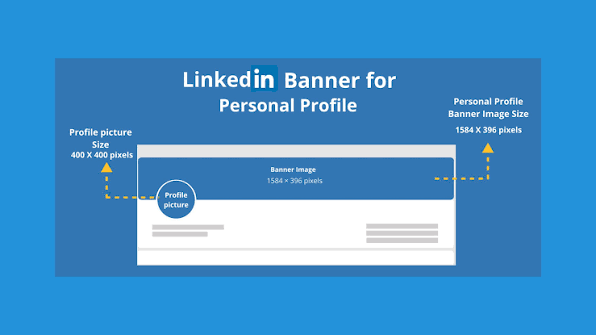
For a personal LinkedIn profile, the recommended cover image size is 1584 × 396 pixels, with a 4:1 aspect ratio. LinkedIn’s own help documentation confirms these dimensions and recommends using a JPG or PNG file smaller than 8 MB.
Using the correct dimensions helps prevent unnecessary cropping, stretching, and blurry graphics. However, simply choosing the right pixel size is not enough. You also need to understand where LinkedIn places your profile photo, how the banner can appear on different screens, and where important text should be positioned.
In this guide, we’ll explain the LinkedIn cover page size, recommended file format, safe design area, mobile cropping, common mistakes, and practical design tips for creating a professional banner.
What Is the LinkedIn Cover Page Size?
For a personal LinkedIn profile, the recommended cover page or background image size is:
1584 × 396 pixels
The image has a 4:1 width-to-height ratio, making it much wider than it is tall. This unusual shape is specifically suited to the horizontal banner area at the top of a LinkedIn profile.
LinkedIn Personal Profile Cover Size
| Feature | Recommended Specification |
|---|---|
| Cover image size | 1584 × 396 px |
| Aspect ratio | 4:1 |
| Maximum file size | Less than 8 MB |
| Recommended formats | JPG or PNG |
| Image type | Horizontal banner |
| Main use | Personal LinkedIn profile |
If you’re designing your banner in Canva, Photoshop, Figma, or another graphics program, create a custom canvas measuring 1584 pixels wide × 396 pixels high.
This gives you the correct starting point without having to resize or stretch the design later.
Why Does LinkedIn Cover Size Matter?
A LinkedIn banner is more than decoration. For freelancers, job seekers, business owners, consultants, developers, marketers, and other professionals, it can communicate what they do before someone even reads their profile.
If you use the wrong dimensions, LinkedIn may crop or scale the image. This can cause several problems:
- Text can disappear from the edges.
- Logos may become partially hidden.
- Images can look stretched.
- Small text may become difficult to read.
- Important design elements can overlap with your profile picture.
- The banner may look different on desktop and mobile.
LinkedIn itself notes that the way a cover image appears can change depending on browser window size and screen resolution.
That is why designing at the recommended 1584 × 396 px size is a good starting point.
LinkedIn Cover Page Size vs. Company Page Cover
One common mistake is confusing a personal LinkedIn profile with a LinkedIn Company Page.
A personal profile uses a 1584 × 396 px background photo. Company Page specifications can be different, and current online guides disagree about the exact Company Page dimensions because LinkedIn’s specifications have changed and older figures continue to circulate.
So, if your goal is to create a personal LinkedIn banner, don’t use a Company Page template simply because it is labeled “LinkedIn cover.”
For personal profiles, the important number to remember is:
1584 × 396 pixels.
Where Should You Put Text on a LinkedIn Banner?
Getting the dimensions right is only half the job.
Your profile picture overlaps part of the banner, particularly around the lower-left area. Because of this, you should avoid placing important information in that section.
Instead, consider putting your main message toward the center or right side of the banner.
For example, a web developer might use:
WEB DEVELOPER
WordPress • Django • Full-Stack Development
A digital marketer could use:
SEO & DIGITAL MARKETING
Helping Businesses Grow Organic Search Visibility
A freelancer could include:
Freelance Web Developer
WordPress | Custom Websites | Remote Projects
The goal is to make the message understandable within a few seconds.
What Is the Safe Area for a LinkedIn Banner?
LinkedIn does not provide a single official pixel-based “safe zone” that guarantees identical visibility on every device. The visible area can change with screen size and browser dimensions.
Therefore, treat the edges of your banner as flexible space.
A practical approach is to:
- Keep critical text away from the extreme left.
- Keep important information away from the extreme right.
- Leave the lower-left area relatively clean.
- Place your main message around the center or center-right.
- Use larger fonts rather than tiny text.
- Check the finished banner on both desktop and mobile.
This approach is especially useful if your banner contains a logo, service list, headline, or call to action.
Best File Format for LinkedIn Cover Photos
LinkedIn’s documentation recommends JPG or PNG for profile cover images, with a file size of less than 8 MB.
Which format should you choose?
JPG
JPG is useful when your banner contains:
- Photographs
- Background images
- Gradients
- Large photographic textures
It generally produces a smaller file size.
PNG
PNG can be useful when your banner contains:
- Logos
- Text
- Illustrations
- Sharp graphic elements
- Transparent design elements
For a graphic-heavy professional banner, PNG can help preserve crisp edges, although the final result also depends on LinkedIn’s processing.
How to Create a LinkedIn Cover at the Correct Size
Creating the correct LinkedIn banner doesn’t require complicated software.
Step 1: Create a 1584 × 396 Canvas
Open Canva, Photoshop, Figma, or another design application and create a custom document measuring:
Width: 1584 px
Height: 396 px
Step 2: Choose a Simple Background
Use a professional photo, gradient, brand background, workspace image, or subtle graphic.
Avoid backgrounds that are extremely busy because they can make text difficult to read.
Step 3: Add Your Main Message
Keep your headline short.
Instead of writing a paragraph, communicate your profession, service, or specialization in a few words.
Step 4: Protect the Lower-Left Area
Remember that your profile picture occupies part of this area. Don’t put an important logo or headline where the profile image can cover it.
Step 5: Preview on Different Screens
Don’t judge the design only on your desktop monitor. Open your LinkedIn profile on a phone as well.
This helps you identify unexpected cropping and readability problems.
Common LinkedIn Banner Mistakes
1. Using the Wrong Dimensions
A banner designed for Facebook, Twitter/X, YouTube, or another platform may have a completely different aspect ratio.
Start with 1584 × 396 px instead.
2. Adding Too Much Text
Your banner isn’t a résumé.
Trying to list every skill, service, certification, and contact detail can make the design difficult to understand.
3. Putting Text Behind Your Profile Photo
This is one of the easiest mistakes to make. Your profile photo can cover part of the lower-left area.
4. Using Tiny Fonts
A font that looks readable while designing on a large monitor may become difficult to read on a phone.
Use short headlines and sufficiently large typography.
5. Uploading a Low-Resolution Image
Starting with a small image and enlarging it can result in a blurry banner. LinkedIn’s guidance specifically notes that a larger image may improve clarity when an uploaded cover appears blurry or pixelated.
LinkedIn Cover Page Size: Quick Answer
If you searched “LinkedIn cover page size” because you just want the answer, here it is:
LinkedIn personal profile cover size: 1584 × 396 pixels.
The recommended aspect ratio is 4:1, and LinkedIn recommends a JPG or PNG file under 8 MB.
For the best result, keep important information away from the lower-left corner and check the banner on both desktop and mobile before finalizing it.
Top Google Searches Related to LinkedIn Cover Page Size
People searching for LinkedIn banner dimensions may also search for:
- LinkedIn cover photo size
- LinkedIn banner size
- LinkedIn background photo size
- LinkedIn profile banner size
- LinkedIn cover photo size 2026
- LinkedIn banner dimensions
- LinkedIn header image size
- LinkedIn background image dimensions
- LinkedIn cover size in pixels
- LinkedIn profile cover photo dimensions
- LinkedIn banner size for personal profile
- LinkedIn company page cover size
- LinkedIn banner safe area
- LinkedIn cover photo size Canva
- LinkedIn banner dimensions Canva
- LinkedIn background photo size 2026
- LinkedIn profile header size
- What size is a LinkedIn banner?
- What is the LinkedIn cover photo size?
- Best LinkedIn banner size
Frequently Asked Questions
What is the LinkedIn cover page size in 2026?
The recommended LinkedIn personal profile cover image size is 1584 × 396 pixels, which has a 4:1 aspect ratio. LinkedIn’s help documentation lists these dimensions as recommended for profile cover images.
What size should a LinkedIn banner be in Canva?
Create a custom Canva design measuring 1584 × 396 pixels. This matches the recommended dimensions for a personal LinkedIn profile banner.
What is the LinkedIn cover photo aspect ratio?
The personal LinkedIn cover photo has a 4:1 aspect ratio. In other words, the image is four times wider than its height.
Can I use a JPG for my LinkedIn banner?
Yes. LinkedIn’s documentation lists JPG and PNG as supported formats for profile cover images. The file should be less than 8 MB.
Why does my LinkedIn banner look blurry?
A banner can look blurry if the original image has insufficient resolution or if it has been heavily compressed or enlarged. LinkedIn recommends choosing a larger image if the uploaded cover appears blurry or pixelated.
Does LinkedIn automatically crop cover photos?
The appearance of your cover image can vary according to the browser window and screen resolution. This means an element positioned near an edge may not appear exactly the same everywhere.
Where should I put my logo on a LinkedIn banner?
For a personal profile, avoid putting an important logo in the lower-left portion because your profile picture overlaps that area. The center or center-right portion is generally more practical for important branding.
Can I put my website URL on my LinkedIn cover?
You can include a short website address in the design, but avoid filling the entire banner with contact information. Your banner should communicate your professional identity quickly, while your LinkedIn profile provides additional space for detailed contact and business information.
Is LinkedIn banner size the same as Facebook cover size?
No. Different social platforms use different image dimensions and aspect ratios. You should create your LinkedIn banner specifically at 1584 × 396 pixels rather than simply resizing another platform’s cover image.
What should I put on my LinkedIn cover photo?
A strong professional banner can include your profession, primary service, specialization, company branding, or a short value statement. Keep the message concise and visually easy to understand.
Final Thoughts
The LinkedIn cover page size for a personal profile is 1584 × 396 pixels. That’s the key specification to remember when creating your next LinkedIn banner.
But dimensions alone don’t create an effective profile header. A good banner should also account for profile-photo overlap, different screen sizes, readability, image quality, and the limited amount of attention a visitor gives your profile.
Start with the correct 1584 × 396 px canvas, keep important elements away from the lower-left and extreme edges, use clear typography, and preview your finished design on both desktop and mobile. With those basics handled, your LinkedIn cover can look cleaner, sharper, and more professional.
